Test your tracking
How to test expected events and export a QA report
Define an action, expected requests, and parameter checks, then keep a local report.
Test steps turn a manual website action into a bounded check of observed browser requests. Open Settings → History & tools → Open test steps and choose New test run.
Define a step before testing
- Enter a test run name and choose Start test run.
- Name the Next action.
- Expand Add an expected event.
- Choose its Provider and exact Event name. Optionally enter the destination ID.
- Set Exactly this many requests. Add comma-separated Required parameters, or a Parameter equals check with its expected value.
- Choose Add expectation for each expected event, then Start step.
- Perform the action on the selected website. Wait for its requests to finish, then choose Finish step.
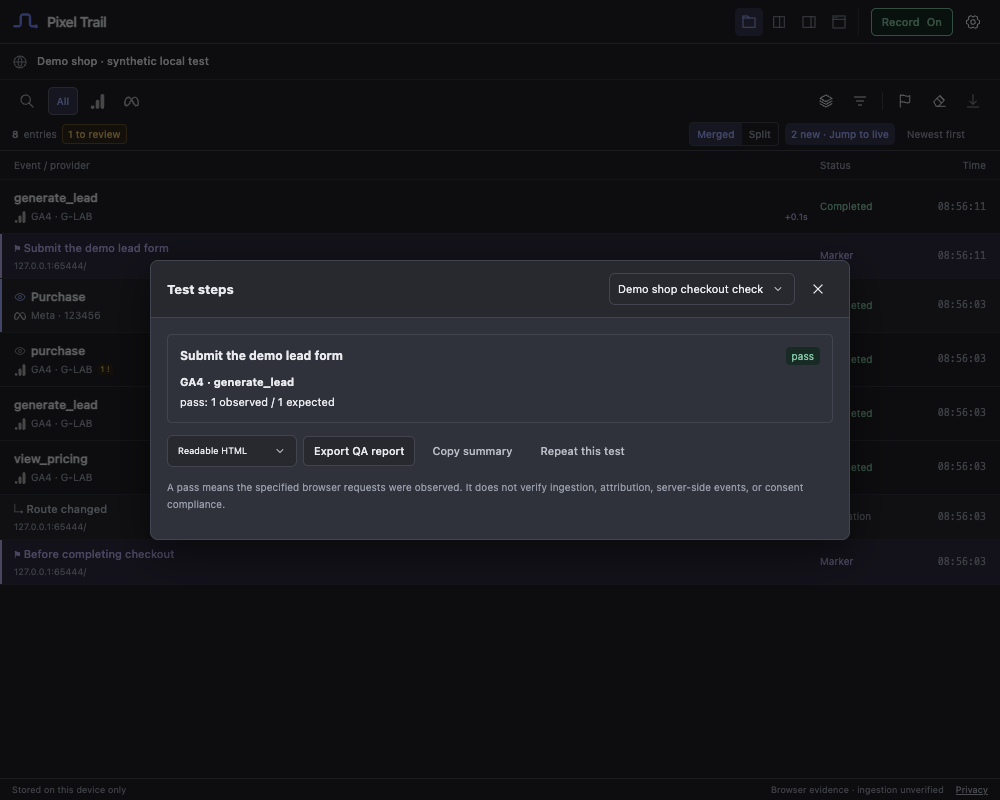 Actual extension interface with synthetic test data.
The selected website must be recording before you choose Start step. Event names and destination IDs are exact, case-sensitive matches. Parameter checks use decoded event properties: use an exact key such as form_id, or a dotted path such as checkout.method for a nested property. A required parameter must be present and non-empty; a value of 0 or false still counts as present.
Counts apply to outgoing network events. Tag detection and page/API intent do not satisfy an expected event. A count of zero checks that the event was not observed in this step; it cannot prove that nothing happened outside Pixel Trail’s visibility.
Read the result
A step can pass, fail, remain unknown, or need review when no expectations were defined. Wrong counts, missing parameters, differing expected values, request failures, and schema warnings can fail a check. Incomplete decoding, pending requests, redacted comparison values, or capture gaps can make a check unknown.
Finish the run with Finish test run. Repeat this test creates a new run from the completed run’s step expectations; it does not replay website actions. You perform those actions again.
Share a useful report
Choose Readable HTML, Markdown summary, or JSON evidence, then Export QA report. Copy summary copies the Markdown version. Safari prepares exports in a separate tab with a Save file action.
Reports describe captured browser evidence. They do not certify analytics ingestion, attribution, consent compliance, or server-side behavior. Review report contents before sharing, and export important runs before local retention trims their supporting events.
Still need help? Contact support.