Get started
How to start recording analytics events on a website
Open a website, turn recording on, and watch supported events arrive across page loads.
Install and enable Pixel Trail
Chrome: open the Pixel Trail Chrome Web Store listing, choose Add to Chrome, and confirm the browser’s installation prompt. Pin Pixel Trail from Chrome’s Extensions menu if you want it in the toolbar.
Safari: if you have the Pixel Trail Mac app installed, open Safari → Settings → Extensions and enable Pixel Trail. The Mac app contains the Safari extension; opening the Mac app alone does not turn on browser capture.
Grant website access for the page you are testing and the analytics destinations you need to inspect. Without that access, the timeline may be incomplete. If installation or access is managed by your organization, ask your browser administrator.
Open the website you want to check, then click Pixel Trail in your browser toolbar. Record on open is enabled by default, so Pixel Trail starts recording that website tab when you open the inspector. A tab you explicitly turn off stays off for the current browser recording session.
Record your first action
- Check that History for shows the website you intend to test.
- Check the Record button: On means that tab is being recorded. Click it to switch between On and Off.
- Click Mark here, name the action you are about to take, and choose Add marker.
- Return to the website and perform the action.
- Select a new timeline entry to inspect its properties and request.
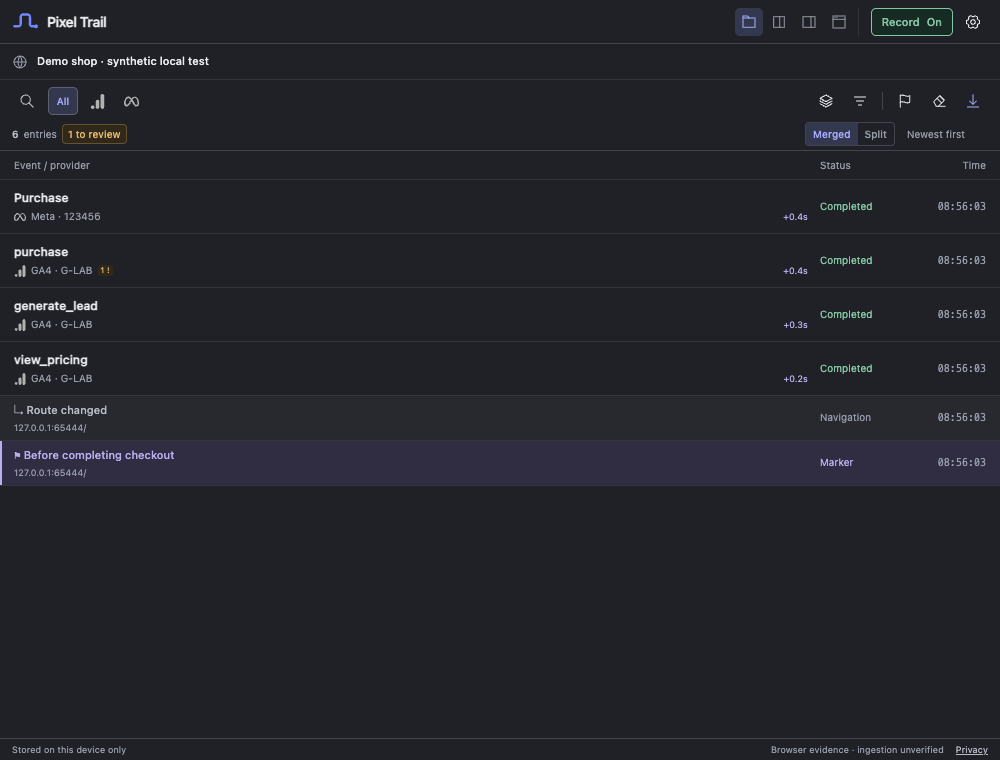 Actual extension interface with synthetic test data.
Opening the inspector does not recover requests that already happened. If you need the initial page events, enable recording first and then reload the website. Saved history remains available when the page reloads or navigates.
Choose which tabs can record
Under Settings → General, Only tabs I record is the default recording scope. All permitted website tabs broadens capture to permitted website tabs; individual tabs can still be turned off with Record.
To prevent opening the inspector from automatically starting capture, switch off Record on open and choose Save settings. Tabs already recording stay on until you turn their Record button Off. Turning recording off stops new capture for that tab; it does not erase its history.
Pixel Trail records ordinary HTTP and HTTPS website tabs. Private windows are excluded. Browser settings pages and extension pages are not recording targets.
If nothing arrives, start with website access and capture diagnostics.
Still need help? Contact support.