Settings & privacy
How to change Pixel Trail’s theme and light or dark mode
Choose Charcoal, Iris, or Ocean, with a system, light, or dark color scheme.
Open Settings → Appearance to change the interface. Appearance saves automatically, so there is no Save settings action on this page.
Choose the color scheme
- System follows your device’s light or dark preference and updates when that preference changes.
- Light keeps the light interface regardless of your device setting.
- Dark keeps the dark interface regardless of your device setting.
Choose a palette
Pixel Trail includes three themes, each with light and dark versions:
- Charcoal — quiet graphite surfaces.
- Iris — soft violet surfaces.
- Ocean — cool slate surfaces.
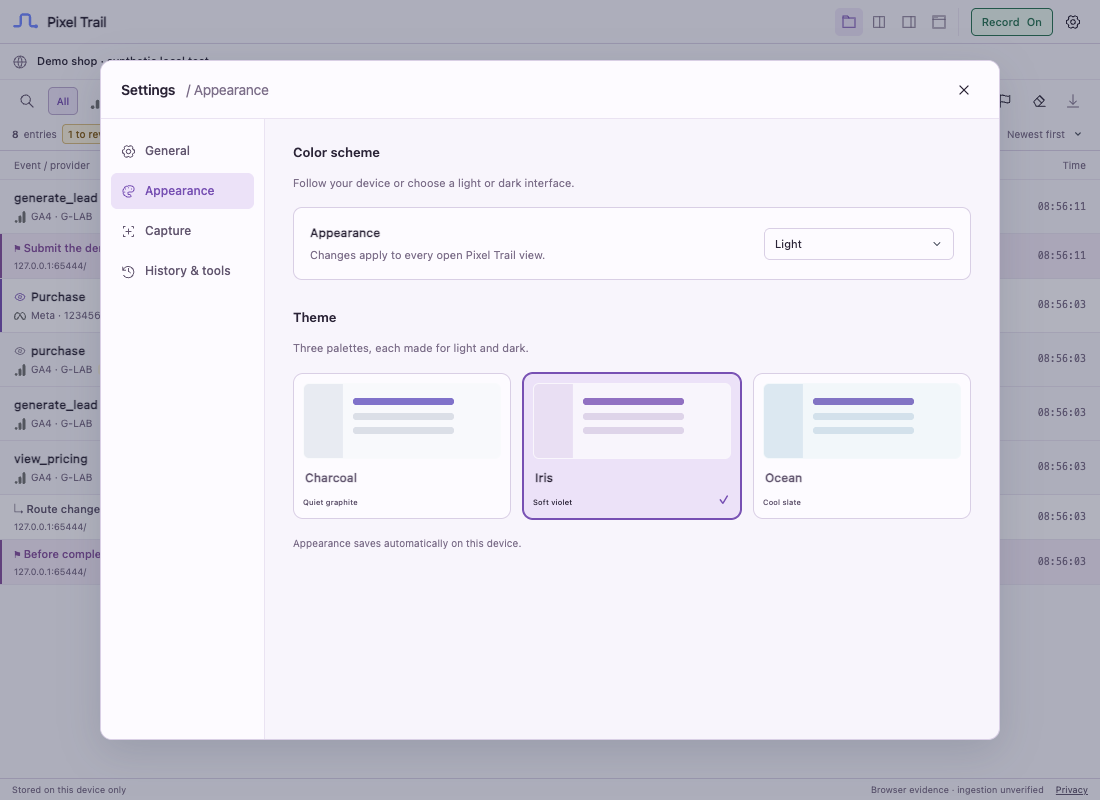 Actual extension interface with synthetic test data.
Choose a theme card to apply it immediately. The active card shows its selected state. Theme and color scheme are separate choices: you can use Iris in Light, Ocean in Dark, or any theme in System mode.
Keep your open views consistent
Appearance changes are stored in this browser profile and apply to other open Pixel Trail views in that profile. That includes the toolbar inspector and the larger views using the shared extension interface.
Chrome and Safari offer the same palettes and color-scheme controls, but each browser keeps its own local preferences. Changing Chrome does not synchronize the choice to Safari or another Chrome profile.
Theme changes affect presentation only. They do not change recording, provider selection, event properties, history retention, or the website’s appearance.
Provider logos use a consistent monochrome treatment, with an accent for selected quick filters. Hover or focus an icon to see its label if you are unsure which control you are about to use.
Still need help? Contact support.