Understand your events
How to filter analytics events by provider, name, destination, or checkpoint
Find the events you need without changing what Pixel Trail records.
Filters change the timeline view. They do not stop another provider from being recorded or delete hidden activity.
Pick one provider or several
Click the provider logos beside the search icon to toggle quick filters. Selected providers use the active accent color. Choose All to remove the provider selection.
The Providers button opens the provider checklist if you prefer names. Choose one or more providers, or All providers. The choices come from observed activity; a provider logo is not proof that its platform accepted an event.
Search event properties
Click Search events, or press / while focus is outside an input, to expand search. It matches captured event text, including event names, destination IDs, URLs, and parameters. Close search with its close icon or Escape. Closing the field keeps the query; Clear search removes it.
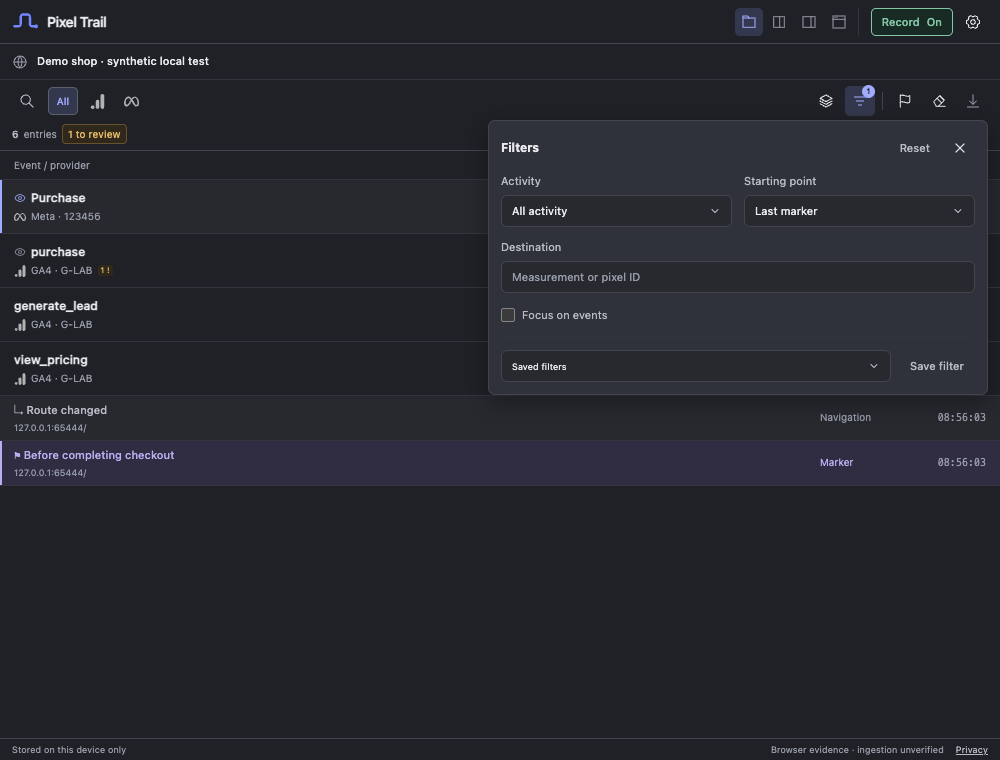 Actual extension interface with synthetic test data.
Narrow the timeline further
Open Filters to choose:
- Activity: network events, page/API intent, consent changes, tags, page changes, failed requests, or entries needing review.
- Starting point: all activity, the latest page, the last marker, or a specific available boundary.
- Destination: part of a measurement or pixel ID.
- Focus on events: hide tags, page observations, and session-recording transport to concentrate on network event entries.
Page and marker boundaries remain visible for context even when event filters are active. Reset removes the active event filters.
Save a recurring filter
Choose Save filter, give it a name, and save. A saved filter restores providers, split/merged layout, activity, search text, and destination. It does not save Starting point, Focus on events, or the selected website history.
Choose Newest first or Oldest first to change timeline order. Follow live keeps the list at incoming activity; scrolling away suspends following so you can inspect an older entry.
Still need help? Contact support.