GA4 event only fires after a refresh? Check the route.
Separate page-load tracking from route tracking, find the missing trigger, and avoid fixing a missing GA4 event by creating duplicate pageviews.
If your GA4 event appears after a refresh but disappears when you navigate inside the site, check whether its trigger runs only on page load. Reproduce both paths before adding another tag: a missing custom event and a missing pageview need different fixes.
A client-side route change can replace the screen without loading a new HTML document. Your visitor reaches Pricing, but a listener attached to the document's load event gets no second turn. The route worked. The measurement didn't follow it.
That's one explanation, not a diagnosis from the symptom alone. The next step is to find the point where the event stops.
Test one route two ways
Use a test environment and a disposable analytics property if you're sending real events. Write down the event you expect, such as view_pricing, the destination measurement ID, and the route where it should happen.
Open Pixel Trail on that website and check that Record is on. Select the relevant provider, add a Mark here checkpoint called “Before opening Pricing,” then navigate using the site's Pricing link. Inspect the resulting activity.
Now refresh while you're still on Pricing. Keep the earlier events: the contrast is the useful part. Check whether the expected event appears only after that full page load, and inspect its destination and page information.
There are three questions to answer:
- Did the page expose an event command or data-layer event?
- Did a corresponding browser request appear?
- Did the analytics platform receive the event?
Before treating an empty timeline as missing instrumentation, check the selected website, website access and filters. An absent captured request does not prove that the page never attempted one.
Pixel Trail helps with the first two. GA4 DebugView is the next check for debug-enabled events received by Google. A completed browser request alone does not establish receipt in your property.
What the controlled run showed
In a disposable Chromium profile running Pixel Trail 2.3.0, the synthetic lab changed route without emitting view_pricing. Reloading produced one completed request to a local GA4-format collector. A second route handler, configured to emit the custom event explicitly, produced another event without a reload.
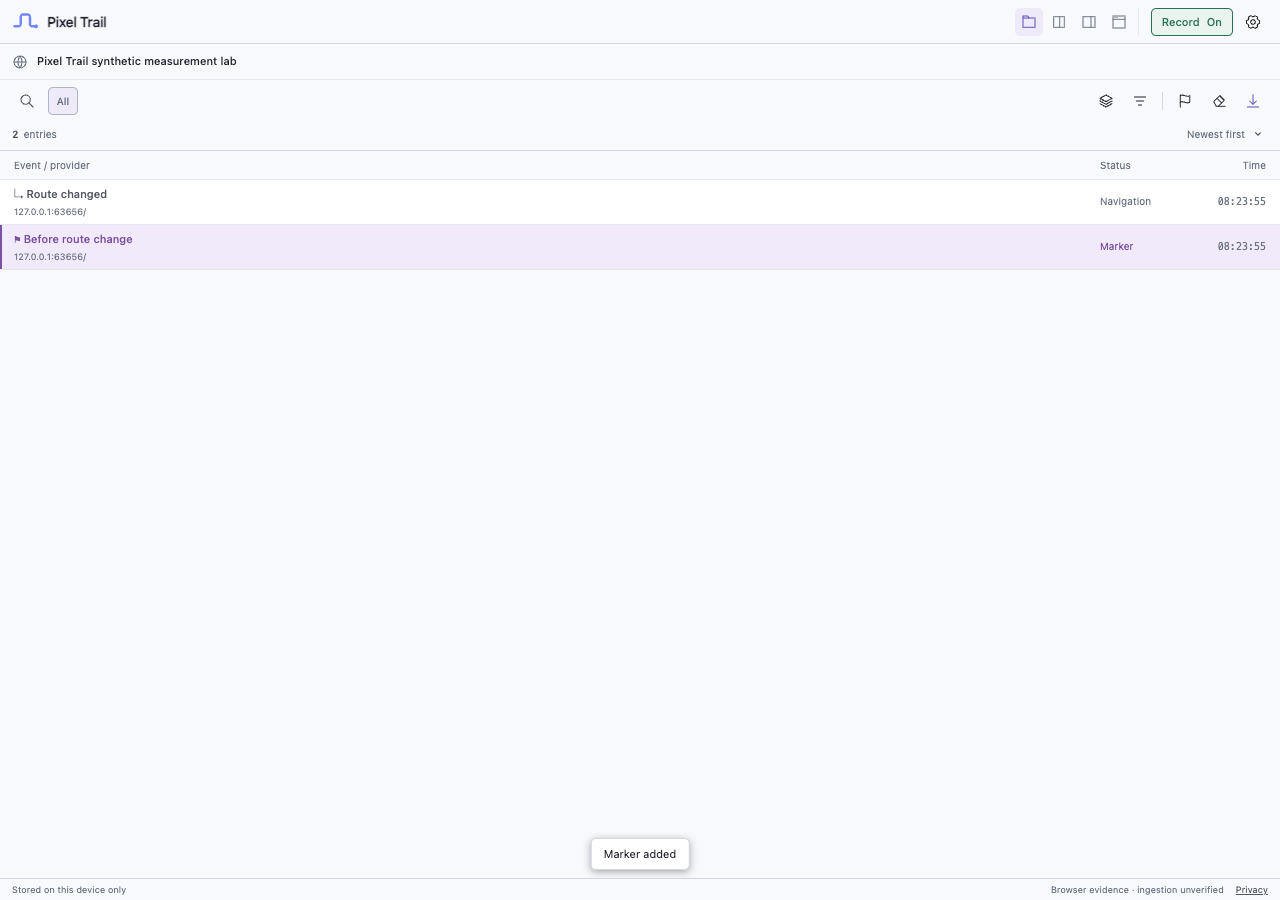
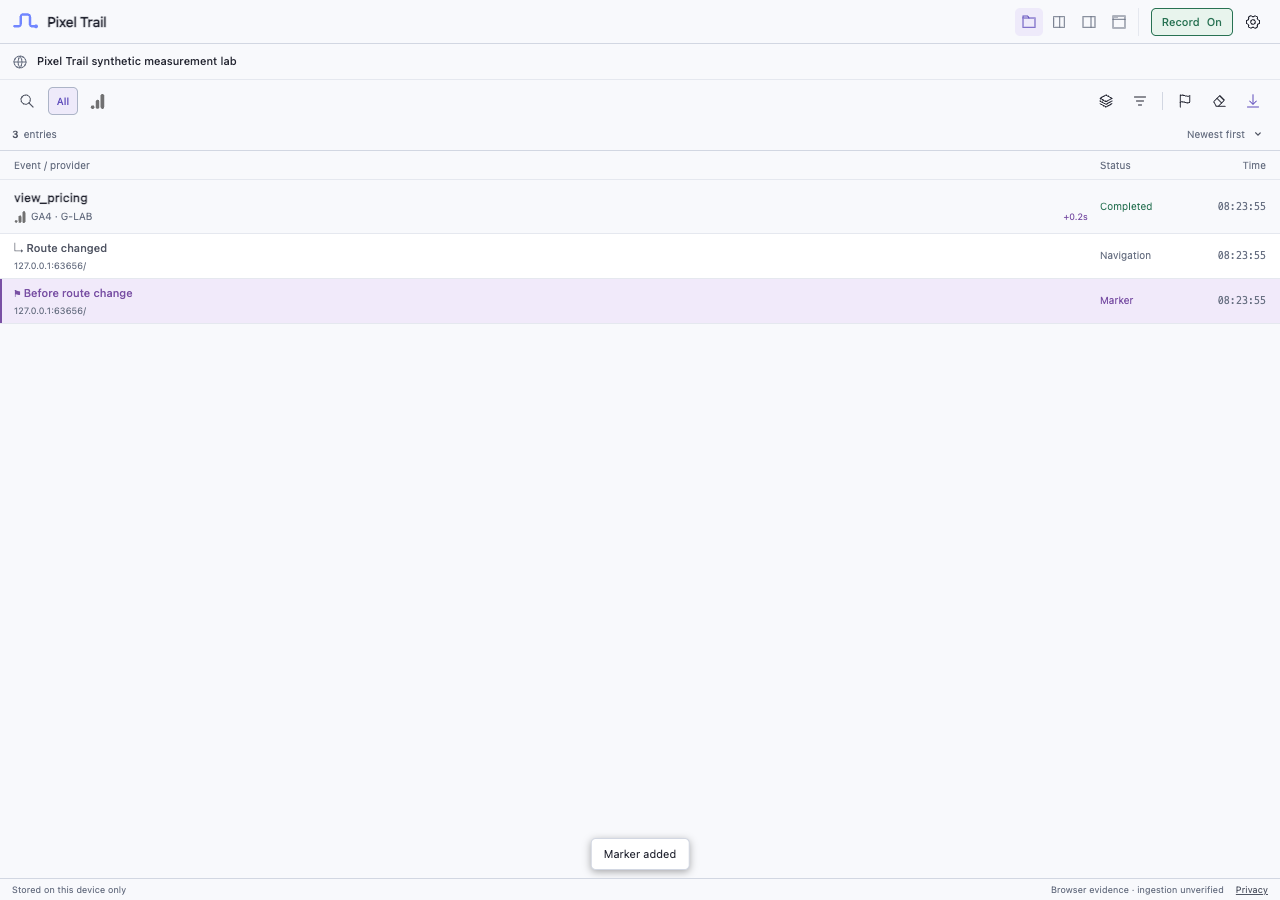
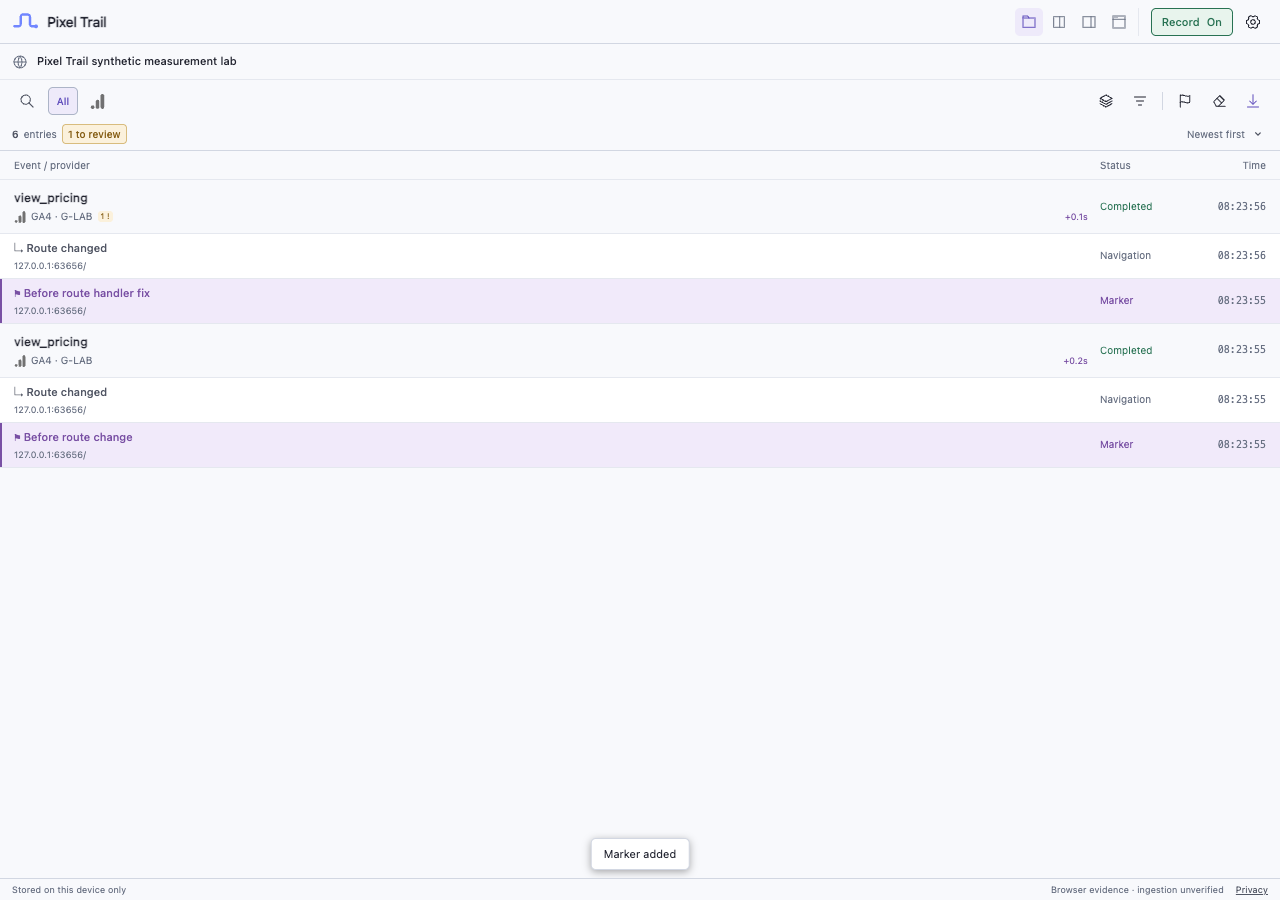
The run demonstrates a load-only versus route-handler difference in a controlled fixture. It does not test Google's real tag, a production router or receipt in GA4. Use the procedure above to find which boundary fails on your site.
Decide which event is missing
If the missing event is page_view, inspect the site's current pageview setup before changing it. Google's SPA guidance describes history-based measurement and custom-event approaches. The appropriate route depends on how the application signals that a screen has changed.
If the missing event is a custom event such as view_pricing, automatic pageviews are not a substitute for that custom behavior. Find the tag or application code responsible for sending it. Check whether that code runs on a completed navigation or only during the first document load.
For example, this simplified application code sends a custom event only when the browser loads the document on a matching URL:
window.addEventListener('load', () => {
  if (location.pathname === '/pricing') {
    gtag('event', 'view_pricing');
  }
});
Clicking a router link to /pricing does not, by itself, rerun that listener. Move the custom event to the application's successful route-completion hook, with an explicit check for the Pricing screen. Use the router's actual API; don't paste a generic History Change solution over an application you haven't inspected.
In GTM, inspect the custom event and trigger that are meant to represent that same completed transition. A URL change can be useful evidence, but your tracking plan should decide which transitions count as a new screen.
Give pageviews one owner
The tempting fix is to send a manual page_view on every route change. Before doing that, check whether an existing tag or Enhanced Measurement already sends it.
Google warns that mixing automatic history tracking with GTM-managed SPA pageviews can double-count views. Pick one route-measurement approach and follow its setup, rather than layering a second sender onto the first.
One easy-to-miss detail: setting send_page_view: false on the Google tag suppresses its default config pageview. It does not, by itself, disable Enhanced Measurement's history-based pageviews. Google's pageview documentation explains the separate history setting.
Retest the journey, not just the fix
Repeat the original navigation and refresh paths. For each path, check the expected event name, destination, count and page information. Then test Back and Forward, where applicable, against the behavior your tracking plan promises.
If the page records an event command but you can't find a browser request, investigate that gap instead of adding another trigger. If the browser request is present but DebugView is empty, check debug configuration, privacy or consent controls, and the receiving property. Those observations point to different work.
Use Clear view between test attempts if the timeline becomes crowded, or compare two captured events when the route and refresh payloads differ. The fix is done when the intended action produces the intended evidence once, not when another event finally appears.
Sources and evidence
- Google: Measure single-page applications
- Google: Measure pageviews
- Google: Monitor events in DebugView
Written with AI assistance. Screenshots show a controlled route-change fixture with local GA4-format requests; Google's SDK and GA4 ingestion were not tested.