Why does my GTM button-text trigger fire on the wrong button?
Replace a broad Click Text condition with a stable element match, test both buttons, and avoid counting a click as a successful form submission.
If two buttons say “Continue,” a GTM trigger that checks only that label can match both. Give the intended button a stable identifier, scope the click trigger to it, and test the unrelated button as well as the one you meant to track.
Changing contains Continue to equals Continue will not separate two identical labels. The condition needs another piece of information: which control this is, where it belongs, or which application action actually succeeded.
Make the wrong button part of your test
Suppose your Pricing panel and newsletter form both have a Continue button. You want pricing_continue only when someone advances from Pricing. The newsletter button is the negative test: clicking it should produce no pricing_continue request.
Seeing the intended button fire is not enough. The test passes only when the unrelated button stops sending that event.
In GTM Preview, reproduce both clicks and inspect the tag's firing conditions. Compare the click variables for each event. Google defines Click Element as a reference to the DOM element where the click occurred; Click Text reads the click's text value. Neither label tells GTM the business purpose of a button. Google's click-variable definitions explain what those variables contain.
Text can identify an interaction reliably. Reused labels and components remove that distinction.
In our controlled example, both buttons sent pricing_continue under the broad label condition. The two checkpoints separate the newsletter action from the Pricing action:
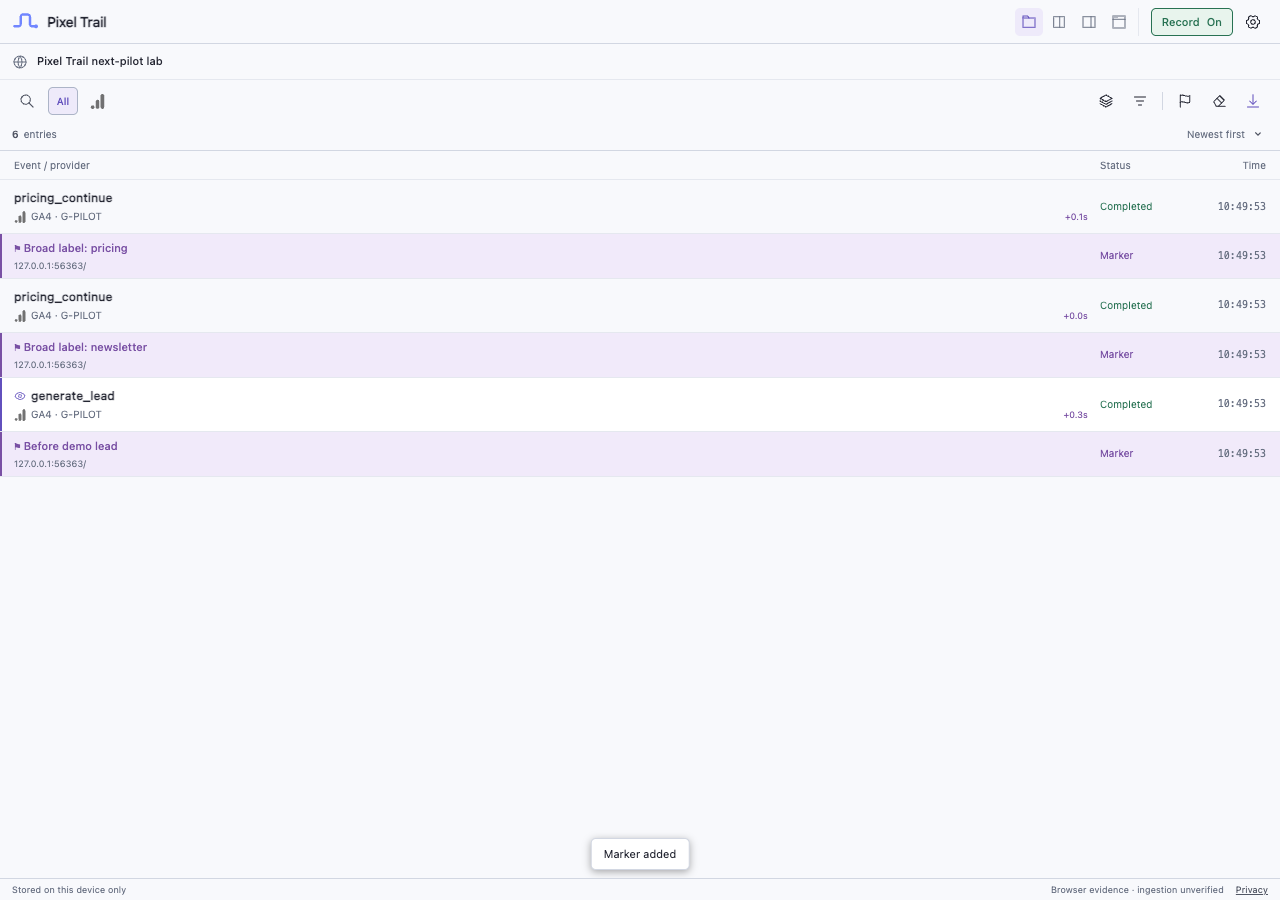
This fixture models the conditions in JavaScript and sends GA4-format requests to a local collector. It does not run a GTM container.
Match the control, including its children
Ask the developer for a unique, stable attribute that describes the action. Here is an illustrative button:
<button type="button" data-track-action="pricing-continue">
  <span>Continue</span>
</button>
The newsletter button must not carry that same action value. A unique existing ID can work too. Avoid selectors based on a button's changing position in the page.
For this button, configure the click trigger with:
- Trigger type: Click – All Elements.
- This trigger fires on: Some Clicks.
- Condition: Click Element matches CSS selector.
- Selector:
[data-track-action="pricing-continue"],
[data-track-action="pricing-continue"] *
Google supports CSS selector conditions against Click Element. The first part matches the marked button; the second covers its descendants. That matters when the actual click lands on the span or an icon inside the button.
Use All Elements for a real <button>; Just Links is for <a> links. These are different click trigger types. If the same component appears on several pages but only one placement counts, add the appropriate page condition too.
Repeat the intended click on the button's text, surrounding button area, and any icon. Then repeat the unrelated newsletter click. Test what people can click, not just the exact pixel you used while configuring the tag.
Remove the old trigger from the tag
Attaching the new scoped trigger beside the old Click Text trigger does not narrow the old one. GTM fires a tag when the conditions of any one of its firing triggers match. Google documents that behavior here.
Remove the obsolete broad trigger from this tag when replacing it. If another tag still needs that trigger, leave its configuration intact there. Retest in Preview before publishing the container change.
This is also a useful diagnostic if the selector looks correct but the unrelated button still fires the tag: inspect every attached firing trigger, not only the one you just edited.
A better click selector still does not prove form success
If the event is supposed to mean “the newsletter signup succeeded,” tracking the right button is only half a fix. A visitor can click it with an empty field, receive a validation error, or encounter a failed submission.
For that job, ask the developer to emit an explicit event from the application's confirmed success path. For example:
// Run from the application's confirmed-success callback,
// not from a generic click or submit listener.
window.dataLayer = window.dataLayer || [];
window.dataLayer.push({
  event: 'form_completed',
  form_key: 'newsletter'
});
Listen for form_completed with a GTM Custom Event trigger and use the form value if you need to distinguish forms. Google's data-layer documentation and Custom Event trigger instructions cover this mechanism.
Configure the corresponding event tag and map any parameters you need. The data-layer message alone does not send a GA4 request. Keep a separate click event if you need to measure click intent too.
Check the outgoing event after each action
In Pixel Trail, select the test website, check that Record is on, and filter to GA4. Add a Mark here checkpoint before the newsletter click, then another before the Pricing click. Keep the two attempts in history.
For this example, you expect no pricing_continue request after the newsletter action and one after the intended Pricing action. Open the captured event to check the destination and event properties, rather than counting any row with a similar name. Page/API intent and network requests are separate evidence.
With the scoped condition in our fixture, clicking the newsletter button's nested text sent no new pricing_continue request. Clicking the Pricing button's nested text sent one. The selected request shows button_location: pricing-continue and trigger_mode: scoped:
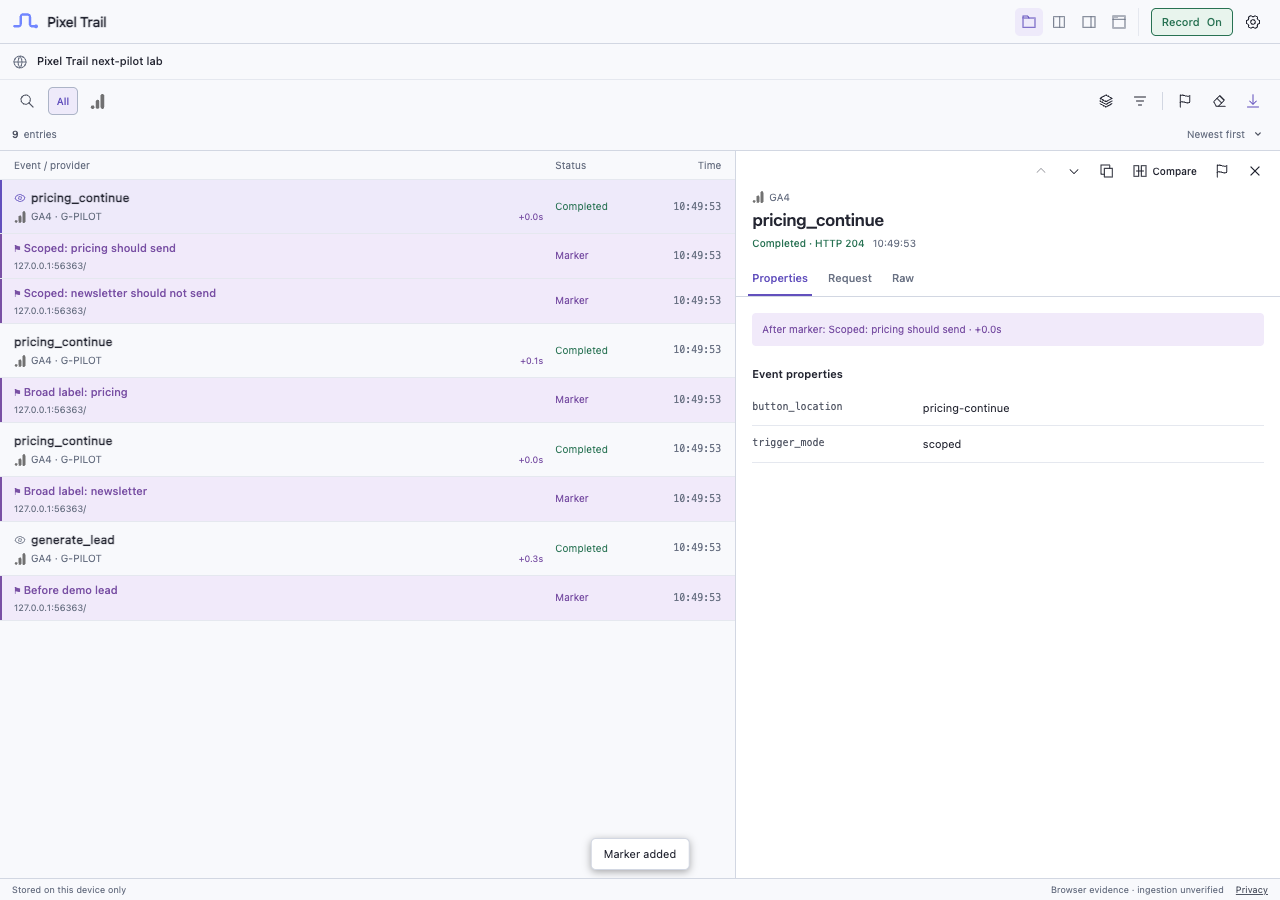
Use Tag Assistant to identify which GTM trigger matched. Use the request evidence to check what the browser sent. A completed request does not establish that GA4 processed it in the property you intended.
If Preview shows the intended tag firing but the request is missing, move to delivery checks: recording and website access, filters, consent configuration, blockers, and the tag's destination. Making the selector broader again will not solve a request-delivery problem.
Sources and evidence
- Google: Click trigger
- Google: Built-in variables for web containers
- Google: Regex and CSS selector operators
- Google: Firing triggers and trigger exceptions
- Google: Preview and debug containers
- Google: The data layer
- Google: Custom event trigger
Written with AI assistance. Screenshots show controlled JavaScript conditions and a local collector; a live GTM container and GA4 ingestion were not tested.